NeuralNote
39/60 MB
Audio Plugin for Audio to MIDI transcription using deep learning.
NeuralNote is the audio plugin that brings state-of-the-art audio-to-MIDI transcription into your favorite Digital Audio Workstation.
What’s new in v2
A new, much more capable transcription model. v2 replaces Spotify’s Basic Pitch with MuScriptor, from Kyutai and Mirelo (paper, blog post, checkpoints). It is a transformer with 103M to 1.4B parameters, compared with fewer than 17K for Basic Pitch.
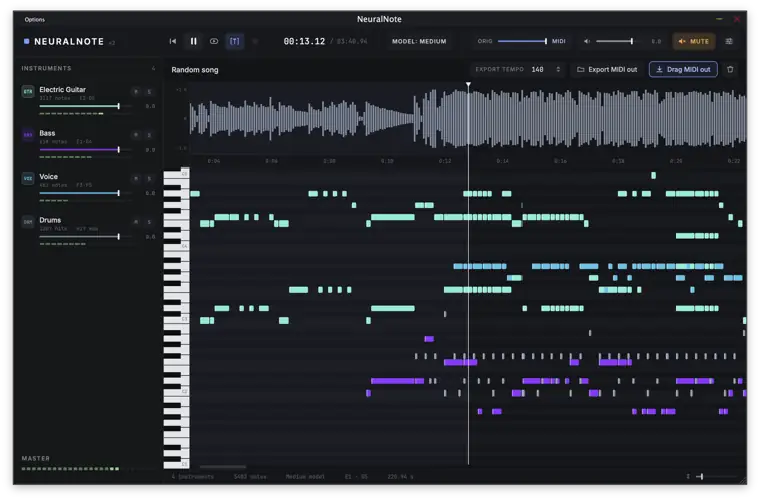
Multi-instrument transcription. Transcribe full mixes, not just one instrument at a time, with notes grouped by instrument.
A built-in multi-instrument synth. Listen to every transcribed instrument, with per-instrument gain, mute and solo.
A new, modern UI.
Still fully local. Transcription runs on your machine, on the GPU or the CPU, and your audio never leaves it. NeuralNote only goes online to download models and to check for updates.
Install
Download the latest release for your platform from the releases page.
macOS (Apple Silicon): NeuralNote_Installer_Mac_arm64.pkg installs the Standalone app, VST3 and AU. It is signed and notarized. An installer for Intel Macs will come later. In the meantime, you can build from source.
Windows (x64): NeuralNote_Installer_Windows_x64.exe installs the Standalone app and VST3. It is not code signed, so Windows may warn you before running it for the first time.
Linux: prebuilt binaries are coming soon. In the meantime, you can build from source.
The transcription model is not included. Download it from within NeuralNote the first time you open it (see Models and performance).
Usage
NeuralNote is a simple AudioFX plugin (VST®3/AU/Standalone app) that you apply to the track you want to transcribe.
Gather some audio:
Click record. This works both when recording live and when playing the track in your DAW.
Or drop an audio file on the plugin (.wav, .aiff, .flac, .mp3 and .ogg (vorbis) are supported).
Select the instruments to transcribe in the left panel, or select Automatic to let the model detect them.
Transcriptions tend to be better when the model is given the correct set of instruments.
Click Transcribe. The transcription runs in the background, and the MIDI fills into the piano roll as it is decoded. A progress indicator and a cancel button are shown while it runs.
Click play to listen to the result without waiting for the transcription to finish. Only the part decoded so far plays.
Adjust the mix between the source audio and the synthesized transcription.
Adjust the level of each instrument.
When you’re happy with the result, drag and drop the MIDI from the plugin onto a MIDI track, or save the MIDI file to your computer.
Models and performance
MuScriptor comes in three sizes, small, medium and large, which trade speed for quality. NeuralNote downloads them as GGUF files from DamRsn/muscriptor-gguf on Hugging Face. When no model is installed, all three sizes are available to download. The Model button in the top bar lets you switch between installed models, download other sizes, and open the folder where they are stored.
OS Models folder
macOS ~/Library/NeuralNote/models
Windows %APPDATA%\NeuralNote\models
Linux ~/.config/NeuralNote/models
The downloads are about 210 MB for small, 620 MB for medium and 2.7 GB for large.
You can also put a model file in that folder by hand. Use a file from v1/ of the HF repo, unchanged and with its original name (e.g. muscriptor-medium-f16.gguf). NeuralNote only picks up files whose name and size match the ones it downloads.
You can remove a model by deleting it from this folder, and re-download it at any time.
Hardware. Transcription speed depends mostly on the model size and on your hardware. The GPU is used when available, through Metal on macOS and Vulkan on Windows and Linux. A GPU is strongly recommended for the medium and large models. Settings > Compute device picks the device: Auto (the default, which names the device it chose), a specific GPU, or the CPU. The choice applies from the next transcription, and GPUs added or removed later are listed after restarting NeuralNote (or your DAW). Only a few GPUs have been tested so far. If transcription fails, gives wrong results or is unexpectedly slow on your machine, please open an issue, either here or in muscriptor.cpp if the problem is in the engine itself. Please include your OS, GPU and model size.
Approximate real-time factors measured on an Apple M1 Pro (above 1× means faster than real time):
Size GPU (Metal) CPU
small ~3.5× ~2×
medium ~1.5× ~0.7×
large ~0.5× not recommended


NeuralNote.2.0.0 ( 103 MB )